Run the RePoSyD API and Web Server
RePoSyD REST API Server
Press Win+X, select Windows PowerShell (Admin) or Terminal (Admin) and run the commands:
cd C:\reposyd\service\
.\reposyd-cli server start api
C:\Users\reposyd-test> cd C:\reposyd\service\
C:\reposyd\service>
C:\reposyd\service>.\reposyd-cli server start api
instance started (console output disabled)
RePoSyD Web Server
Press Win+X, select Windows PowerShell (Admin) or Terminal (Admin) and run the commands:
cd C:\reposyd\service
.\reposyd-cli server start web
C:\reposyd\service>.\reposyd-cli server start web ../data/app
application folder c:/reposyd/data/app
ws://localhost:3000/
Serving static path: c:/reposyd/data/app
Generating certificates...
Certificates path: C:\Users\reposyd-test\AppData\Roaming\https-localhost. Never modify nor share this files.
Downloading the mkcert executable...
Running mkcert to generate certificates...
Created a new local CA 💥
The local CA is now installed in the system trust store! ⚡️


Created a new certificate valid for the following names 📜
 - "localhost"

The certificate is at "C:\Users\reposyd-test\AppData\Roaming\https-localhost\localhost.crt" and the key at "C:\Users\reposyd-test\AppData\Roaming\https-localhost\localhost.key" ✅

It will expire on 4 September 2028 🗓


Certificates generated, installed and trusted. Ready to go!
Server running on port 443.
Generating SSL Certificates
SSL certificates are automatically generated when the web server is started for the first time and loaded into the certificate store.
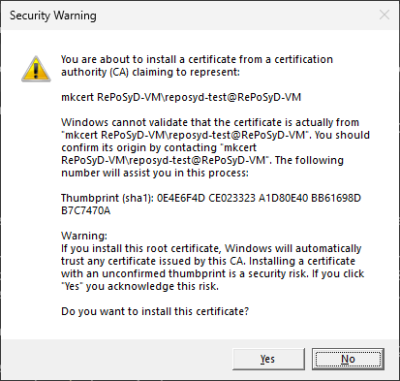 Click OK to add the certificate to the certificate store.
Windows Fire Settings
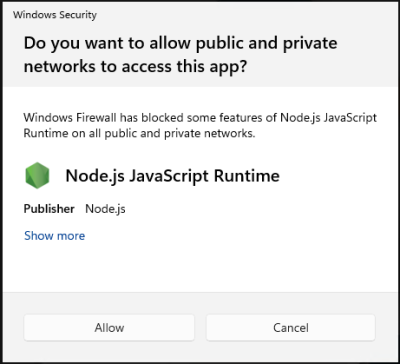 Click Allow to permit access to the web server from other computers on your network.
Open the Browser
Open your browser and go to the page https://localhost.
Click the login button to open the login dialog, and log in using “admin” as the username and the password that was displayed at the end of the instance installation.